Journey overview
By clicking User Journey from the main menu, you will be taken to a page regrouping all the scenarios that have been created for your site.
This page gives a brief summary of the performance of each scenario.
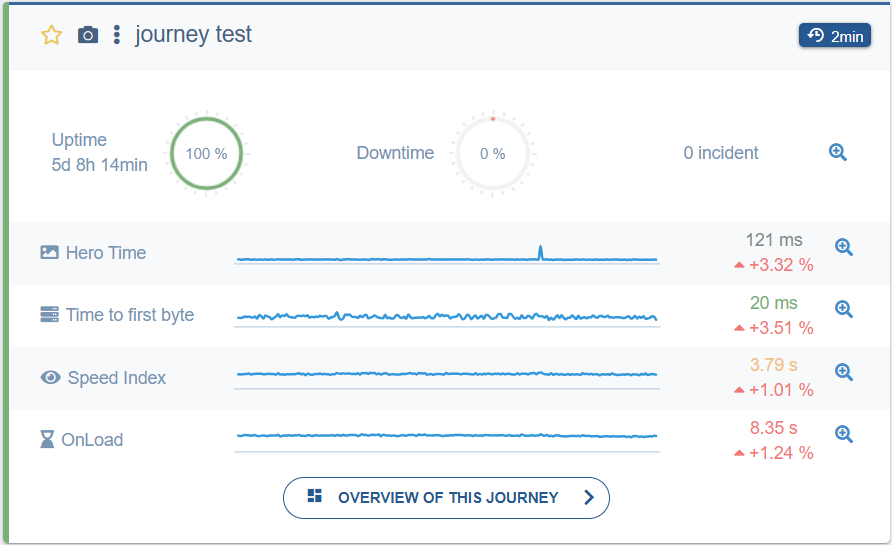
On each of these User Journeys you can:
- Add a journey to your dashboards by clicking the star icon.
- Save each journey's summary as a screenshot by clicking the camera icon.
- Access the Digest and Notification settings for each journey or its configuration by clicking the three dots.
- See and export the list of incidents on a journey by clicking the magnifying glass next to the number of incidents.
- See and export the full HAR of each individual incident by clicking on it in the list of incidents. You can also download the logs of the probe that ran into the incident from here.
- See a more detailed graph for each of the metrics by clicking the magnifying glass next to each metric's graph.
Overview of a journey
The button Overview of this journey takes you to a more detailed breakdown of each aspect of this journey. You can click on each of the metrics on the Overview to get a per-step evaluation of it according to each metric.
The tabs at the top also allow you to better evaluate each step's performance.