Defining alert rules
From logs to alert events
Logs have a severity (i.e., a log level) that indicates how serious an event is. However, severity only tells you about the nature of a single log. On its own, this is not enough. Logs often need to be analyzed together.
For example, an INFO log entry might simply record that a user tried to log in. But if you see 300 login attempts (and therefore 300 INFO entries) within 10 seconds, that suggests a problem.
To detect issues like this, you need to create alert rules.
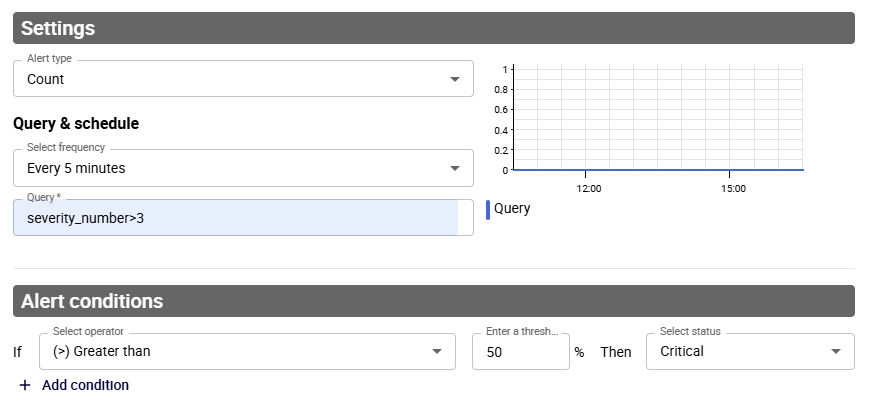
An alert rule evaluates specific criteria over a defined time period and generates alert events, each with an alert status. For example, an alert rule might be described like this in words: "If this query returns more than 50 results in the last 5 minutes, an alert event with the CRITICAL status should be recorded."
- alert type: count
- frequency: 5 minutes
- alert conditions: if > 50, then alert status = CRITICAL
Alert statuses
Possible alert statuses are:
- CRITICAL
- ERROR
- WARNING
- OK
- UNKNOWN
Defining an alert rule
For the beta program, you can create up to 10 alert rules.
- Go to Alerts & notifications > Alert rules.
- Click Add.
- In the window that appears, enter a name and a description for your alert rule, then define the criteria you want.
- Alert type:
- Count means that the query will return the number of log entries that match the query.
- Ratio means that you divide the results of a query by the results of another query.
- Frequency: this field defines both the frequency of the check and the time period covered by it. For instance, if you select Every 5 minutes, a check will be performed every 5 minutes on the data of the last 5 minutes.
- Query: use the correct query syntax.
- Conditions: define which alert status the alert event should have.
- Alert type:
- Save your alert rule. The window is closed and your alert rule appears in the list of alert rules. The rule starts being evaluated and producing alert events.
Viewing all alert events
Go to Alerts & notifications > Alert events. Use the search bar and its filter button to find alert events.
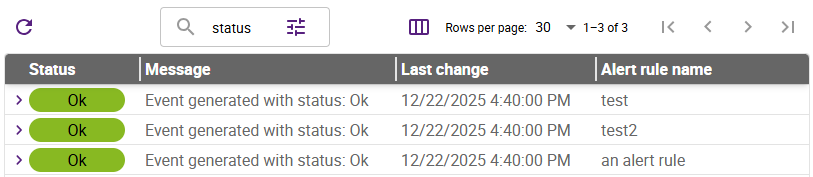
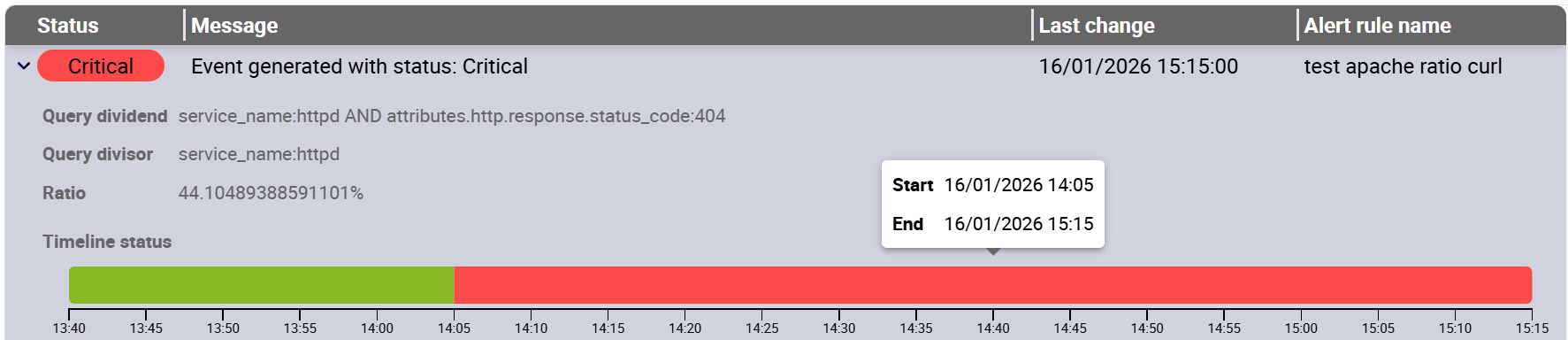
You can expand each alert event to display more information about it. Hover over the graph to display the start and end dates.