Setting up notifications
Notifications can be sent when an alert rule triggers an alert event and certain conditions are met. You can configure a webhook to post a message to a third-party application.
Step 1: Create a notification channel
-
Go to Alerts and notifications > Notification channels.
-
Click Add or Create a notification channel and enter a name and description.
-
In the Settings section:
- Enter the webhook URL you retrieved from your third-party application. You must include https://.
- Select the HTTP method you want the webhook to use.
- Write the message body to be sent.
- Define any headers you want to pass to your third-party application, e.g. to indicate the format of the message body.
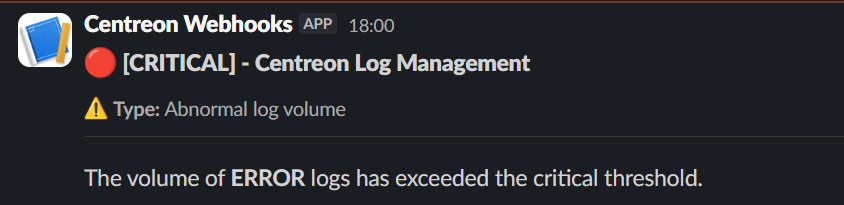
Example: I want to post a message to a Slack channel.
- The webhook URL is retrieved from Slack.
- For Slack, the message body must be json (see the example below).
- Header: key: content-type: value : application/json.
-
Click Create. The notification channel appears in the list.
Step 2: Link an alert rule to a notification channel
-
Go to Alerts and notifications > Alert rules.
-
Create a new alert rule or edit an existing one: in the Notification channels section, click Add channel.
-
In the section that appears:
- define which alert event statuses should trigger a notification.
- define when notifications should be sent: On every status change/on every alert event.
- select the notification channel you created at step 1.
-
Click Save. The notifications will start being sent when the alert events meet the conditions you defined. Use the Last trigger event and Last sent columns to track your notifications.
Example
json
{
  "blocks": [
    {
      "type": "header",
      "text": {
        "type": "plain_text",
        "text": "🔴 [CRITICAL] - Centreon Log Management",
        "emoji": true
      }
    },
    {
      "type": "context",
      "elements": [
        {
          "type": "mrkdwn",
          "text": "⚠️ *Type:* Abnormal log volume"
        }
      ]
    },
    {
      "type": "divider"
    },
    {
      "type": "section",
      "text": {
        "type": "mrkdwn",
        "text": "The volume of *ERROR* logs has exceeded the critical threshold."
      }
    }
  ]
}
Slack output